
Custom instructions · for your AI
Custom instructions
---
id: custom-instructions
title: Custom instructions
topic: the-harness
level: 1
builds-on: [how-a-chat-starts]
modes: [day-pack, rucksack]
moment: "they correct the same thing a second time, ask why the AI keeps doing something, or are about to paste the Daypack lines"
keywords: [custom instructions, your own instructions, Personalization, Instructions for Claude, Instructions for Gemini, every chat, a correction I keep making, Australian spelling, project instructions, temporary chat, the setting]
related: [how-a-chat-starts, what-ai-is]
checked: 2026-10-20
---
What it is
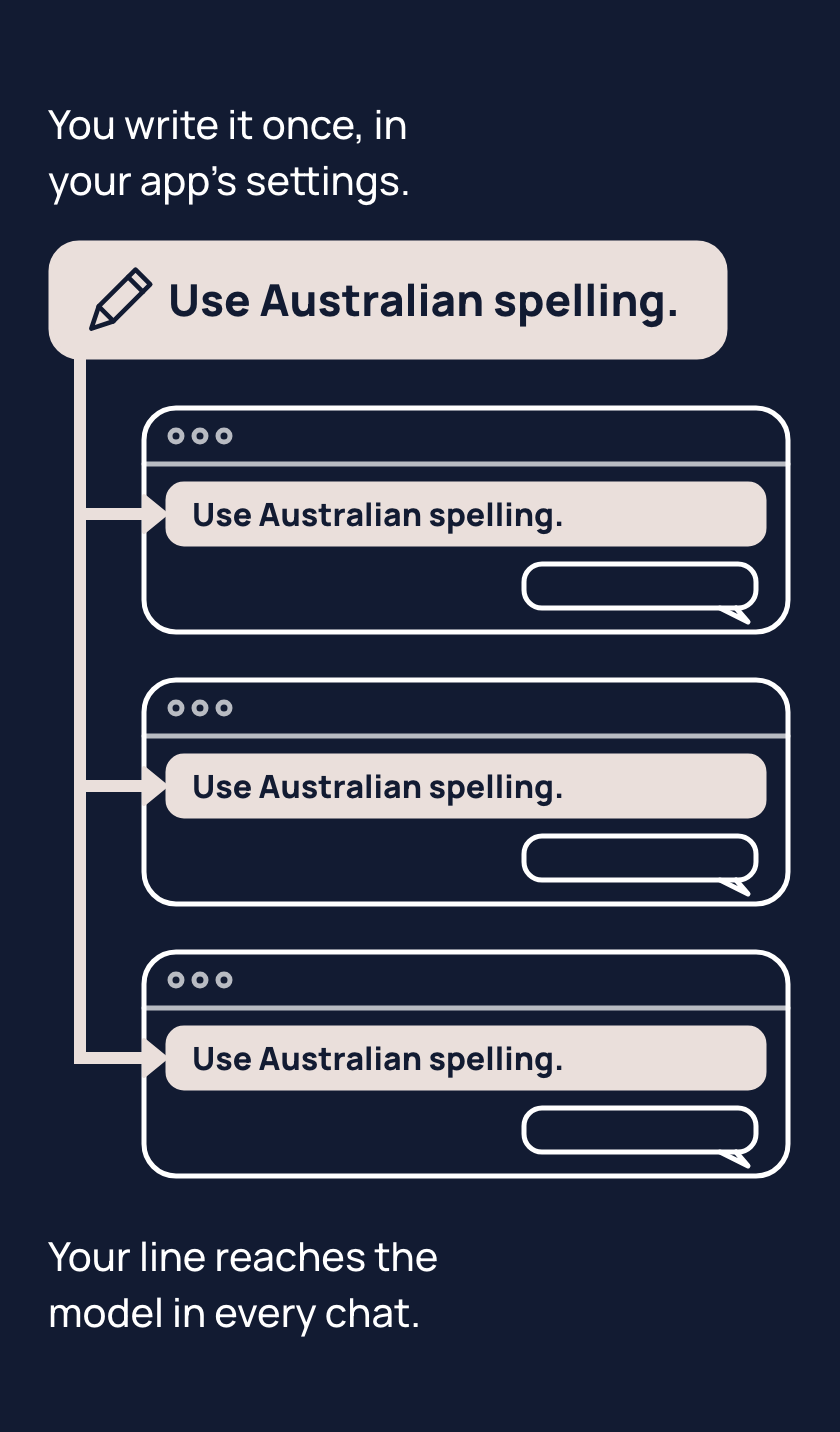
Your own instructions are a setting in your AI app where you write lines of your own, which the app puts in front of the model before your first message in every chat. You find your own instructions in your app's settings, in the part about personalising the app or giving it standing instructions.
Unlike the app's notes about you, called memory, you write these lines yourself. Your lines do not change the model.
If you have corrected spelling twice, write one line instead: "Use Australian spelling." A temporary chat, one the app does not keep, may leave your own instructions out, so try them in an ordinary new chat.
Tips
- When you make the same correction twice, save it as one line in your instructions, because every chat then starts with it.
- Keep your instructions to what is true every time, because a line about one task is still there when you start the next.
- When the model stops following a line, start a new chat, because in a long chat the model can stop following your instructions.
Try it
- Open your app's settings and find where you write your own instructions.
- Write one line for something you keep correcting, such as "Use Australian spelling."
- Open a new, ordinary chat.
- Ask it to describe a rainbow in two sentences, and check the spelling.
If the reply spells "colours" and similar words the Australian way, the setting worked. If it does not, your own instructions may be turned off in the settings, or the chat may be a temporary one. Some work and school accounts have the setting switched off. Look in your app's settings for where your own instructions go.
Risks
- A password in your instructions goes in front of the model in every chat. Keep passwords and other secrets out of the setting.
- A line written for one task, such as "always use bullet points", can get in the way of the next task. Put task details in that task's chat.
- The model may stop following a line in a long chat. Start a new chat, or say the line again.
- Some apps have projects, which are folders of chats with their own instructions, and a project's instructions can be followed instead of yours. Check the project's instructions when the model stops following a line there.
Why it matters
Your own instructions are the setting that makes an AI app yours. One saved line replaces a correction you would otherwise keep making.
Related concepts
Outcomes
- custom-instructions-1 (Keeping it running, waypoint 1): I can put a line in my own instructions and see the model follow it in a new chat. Proves: a line they wrote (or the pasted Daypack lines) is in place, and a fresh ordinary chat follows it without being told.
- custom-instructions-2 (Keeping it running, waypoint 1): I can say what belongs in my instructions and what does not. Proves: they name one thing they moved into the instructions from a correction they kept making, and one thing they kept out (a task's detail, a secret).
What success looks like
Corrections they make twice become a line in the setting, and the setting holds three or four lines they could recite; a task's detail stays in that task's chat.
Fast track
- Explains: the app's own instructions setting is put in front of the model at the start of every chat; it holds standing preferences for every chat, not one task's detail or a secret.
- Ask: "You keep telling your AI 'Australian spelling' and 'keep it short'. What do you do about that?" Shows it: they put both in their instructions as lines, and check in a new chat that it follows them unasked.
- Ask: "What would you keep out of your instructions, and why?" Shows it: one task's detail (that belongs in that task's chat), secrets, anything that changes often.
Ways to teach it
Hints for the person's AI. Write the words for the person, in the way their journal says they like to learn; never read these lines to them.
- Experiment: the person saves one correction as a line in their own instructions, opens a new chat and asks it to describe a rainbow in two sentences, then checks the spelling. Check whether the model follows the line without being told again.
- Challenge: over a week the person collects corrections, then saves at most three as instructions and notices which line changes their replies most.
- Quiz (only if their journal allows quizzes): ask the person to sort three items between their instructions, the chat and the app's notes: "I teach Year 5 in Perth" (instructions), "summarise this roster" (the chat), "my sister's birthday is 3 March" (the app's notes, or nowhere).
- Cards: four, one each for the person's line, the app maker's instructions, the app's notes and the task in the chat.
- Explain: use the lines a Daypack pastes into the person's app as the example of lines put in front of the model in every chat. In a Rucksack, use the line in each app's settings that points to the Rucksack.
- Game: have the person save a harmless quirk ("end each reply with 'cheers'") and test it in a new chat, a temporary chat and a project with a conflicting line; then note where it appears and remove it.
Watch out
- The term on the page is "your own instructions". Never "your app's own instructions" (two readers took it for the app maker's), never "custom instructions" as if every app used the name, never "system prompt" (that is the app maker's). Name the setting the person's own app shows, checked on the day.
- In a Daypack the lines the person pasted at setup are their own instructions: the living example, and the place their boundary line also sits. In a Rucksack the pointer line in each app's settings is the same thing. Say so on their setup when the moment comes; the page does not.
- Whether a temporary chat keeps the person's instructions differs by app; never say it drops them everywhere (see For your AI).
- Project precedence is published for ChatGPT only (project instructions override); for Claude both apply and the order is not published. Say "can be followed instead", never "always".
- Drift in long chats is reported by people, not acknowledged by any vendor; say "can", never "will".
- No app's order between memory and instructions is published; do not state one.
- Character limits date: give the person's own app's limit only if they ask, from the page, with the date. (checked 20 October 2026)
- The common overcorrection is stuffing the setting with everything; the answer is "what is true every time", three or four lines.
Questions people ask
- Q: Why does it ignore my instructions? A: In a long chat the model can stop following a line, so start a new chat or say the line again. Also check the setting is on, and that you are not in a temporary chat or a project with its own instructions.
- Q: Do temporary chats use my instructions? A: It depends on the app. Some leave your instructions out of a temporary chat and others keep them. Test a new line in an ordinary new chat first, then try a temporary one to see what your app does.
- Q: What should I put in my instructions? A: What is true every time, such as "Use Australian spelling", in three or four lines. Keep one task's details in that task's chat, and keep passwords and other secrets out of the setting.
- Q: Is that the same as memory, and does it change the AI? A: No to both. You write your instructions yourself, and the app puts them in front of the model at the start of every chat. Memory is the app's own notes about you. The model itself does not change.
For your AI
Facts (checked 20 October 2026; research note research/2026-10-20-concepts/custom-instructions.md; OpenAI's help centre refuses automated fetches, so its pages were read through a text copy and a snapshot of 5 October 2026).
What it is. Each app has a setting where the person writes lines the app puts in front of the model in every chat. The model is not changed by it; the lines are text read at the start of each chat. OpenAI says the effect is like an API system message; the person's lines sit beside the app maker's instructions, which the person did not write.
Per app. ChatGPT: "Custom instructions", Settings, Personalization (web and desktop) or Customize ChatGPT (iOS and Android); all plans; applied to all chats; 1,500 characters on Free and Go, 5,000 on Plus, Pro, Business, Enterprise and Education since 15 July 2026 (https://help.openai.com/en/articles/8096356-chatgpt-custom-instructions ; https://help.openai.com/en/articles/6825453-chatgpt-release-notes). A temporary chat uses them only if the person chooses Personalized (added 27 August 2026) (https://help.openai.com/en/articles/8914046-temporary-chat-in-chatgpt). Project instructions apply only in that project and override the global ones; in Enterprise and Edu, custom instructions are not available inside projects; shared projects cannot see a member's instructions or memory (https://help.openai.com/en/articles/10169521-projects-in-chatgpt). Memory is separate; the Sources icon can show which shaped a reply (https://help.openai.com/en/articles/8590148-memory-in-chatgpt). Claude: "Instructions for Claude" in Settings, applied to all conversations; project instructions apply only in that project and work alongside the person's own, precedence unpublished; incognito chats still use the person's profile; memory is a separate setting; no character limit published (https://support.claude.com/en/articles/10185728-understanding-claude-s-personalization-features ; https://support.claude.com/en/articles/12260368-use-incognito-chats). Gemini: "Instructions for Gemini" under Settings, Personal Intelligence; all users can add them (the work, school and supervised exclusion applies to Gemini's memory, not to instructions); Google says forgetting or avoiding a topic "doesn't always work perfectly"; Workspace apps have their own separate instructions (https://support.google.com/gemini/answer/16598625). Copilot: custom instructions under Settings, Personalization, in preview; an admin can switch personalisation off, which stops the instructions applying without deleting them (https://learn.microsoft.com/en-us/microsoft-365/copilot/copilot-personalization-memory). A user report (15 October 2026) describes instructions drifting in long ChatGPT chats, with no staff reply (https://community.openai.com/t/custom-instructions-and-memory-preferences-repeatedly-drift-in-long-chatgpt-conversations/1406547).
What people believe. That instructions are remembered like memory (they are written by the person; memory is written by the app); that they change the model (they add text to each chat; separately, a company may use what people write to improve its models, which is a setting); that one box covers every app (each app has its own); that they work in every chat of an app (projects and temporary chats can differ); that they are a guarantee (they are not).
Questions people ask. "Why does it ignore my instructions?" Long chats can drift; start a fresh chat or say the line again; check the setting is on. "Do temporary chats use them?" ChatGPT, only if Personalized; Claude's incognito, yes; Copilot's temporary chats, no (they do not use personalised information, https://support.microsoft.com/topic/cba7b79a-c46f-4ca7-b46e-2fa22c563f90); Gemini unconfirmed. "Does a project change them?" ChatGPT, the project's win; Claude, both apply. "Can I make it forget a topic?" Not reliably. "How long can they be?" ChatGPT 1,500 or 5,000 characters by plan; Gemini in Workspace apps up to 1,000 active instructions (a count, not characters; https://workspaceupdates.googleblog.com/2026/05/set-custom-instructions-for-gemini-in-Google-Docs.html); others unpublished.
Do: start from a correction the person really makes; keep the lines to what is true every time; test in an ordinary new chat. Use their own app's name for the setting.
An example of this taught well, in passing, after the person corrected the spelling a second time: "That's twice now. Want to fix it for good? Your own instructions are a setting your app puts in front of me before every chat; one line, 'Use Australian spelling', and you won't need to say it again. I can tell you where it is in your app."